Acer USB-C SD Card Reader, High Speed Type-C Micro SD Card Adapter, USBC External Memory Card Reader SDXC, Micro SDXC Card, Compatible with MacBook Pro/Air, Acer Laptop, iPhone 16, Camera - Blue



As an Amazon Associate we earn from qualifying purchases.
Product Overview
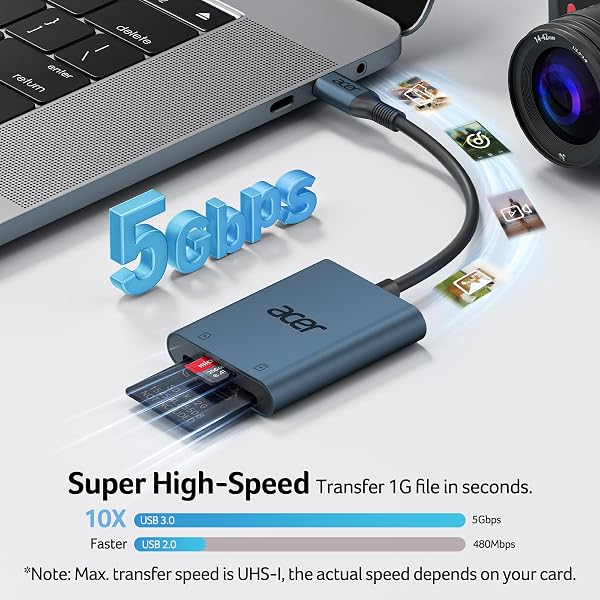
Compatibility Devices (Partial List) ✔USB-C Phones: 𝒊𝑷𝒉𝒐𝒏𝒆 16 Pro Max/Pro, 15 Pro Max/Pro; Galaxy S25/S24/S23/S22/S21+/S21 Ultra/S20/S20+/S20 Ultra/S10e/S10/S10+/S8/S8+/S9/S9+, Note 8/9/10+; HUAWEI P50/P40/P30/P30 Pro/P20, Mate30/20/20RS/10; HTC 10/U11/U12; Pixel 2 Pixel C,Nexus 5X 6P, Pixel 6, 5, 4, Pixel 4XL, Pixel 4a, Pixel 3, Pixel 3XL, Pixel 2, Pixel 2 XL etc. ✔USB-C Tablets: 𝒊𝑷𝒂𝒅 Pro M2, M1, 2022, 2021, 2018, 2020 (11, 12.9 inch); Galaxy Tab S8/S7/S6/S5e/S4/S3, Tab A 8.0 & S Pen (2019)/Tab A 10.5 (2018)/Tab A 8.0 (2017), Galaxy Book 12''; Huawei MediaPad M6, M5, Lenovo Yoga Tab 3 plus etc. ✔USB-C Laptops: MacBook Pro M4/M3/M2/M1/2020/2019/2018/2016/2015, MacBook Air 2022/2021/2018/2020; Acer Swift X/5/3/Edge 16/Go 14, Aspire 5/3; Huawei Matebook 14/X Pro; Xiaomi Pro 16 / 15 Book, Lenovo X1 Book, ThinkPad; Dell XPS 17/15/13; Surface Book 2/Go; Google Pixelbook/Pixelbook Go ✔SD: SDHC, SDXC, RS-MMC, MMC Micro ✔microSD: MicroSDHC, MicroSDXC --------------------------------------------------- ✘Incompatible: (✘) SIM card, CFexpress card, Compact Flash card, XD card; (✘)Lightning Devices --------------------------------------------------- Tip1: Data transfer rates are subject to the speed of the memory card itself and your device's USB C ports.
Tip2: If you fail to transfer large files, please try to format the SD/MicroSD cards to the right format for your devices. Recommend using MS-DOS (FAT) for 32GB or smaller cards, and exFAT for 64GB cards.
Tip3: Devices with USB 2.0 port would only run at 480Mbps; Read UHS-II cards at UHS-I speed (Sync Speed up to 104 MB/s). --------------------------------------------------- Q1: Find the SD Card via "Files" on iPhone? A1: 1.
Insert the SD card into the reader > Plug the device card reader into the iPhone > 2. Click on the “FILES” app > Click on iCloud Drive’s “Browse” > 3.
Click on Browse’s “Your SD card name” > 4. Now you can view your files from your SD card on “Your SD card name” Q2: Unable to recognize the Card Reader on m
Key Points
What makes this product stand out
Main Specifications
Technical details and specifications
Customer Ratings
What Buyers Say
Real verified customer reviews
thumb_upMost Loved
Must Buy!!
Can't recommend this enough, really good product at such a cheap price. works perfectly with my iphone. its light weight and portable so can take it anywhere with me❤️
nice and neat
very neat and works well
From the Brand


Related Deals
Similar Products
Frequently Bought Together
Never Miss a Deal
Get the best discounts and expert picks delivered to your inbox.
Join thousands of smart shoppers